
With CI HUB Drive for Windows, you can access and manage your connected DAM assets directly within your Windows File Explorer, just like working with files on your local computer.
This allows you to browse, search, download, and organize your assets without leaving your desktop environment.
Access Your Connected DAM in File Explorer
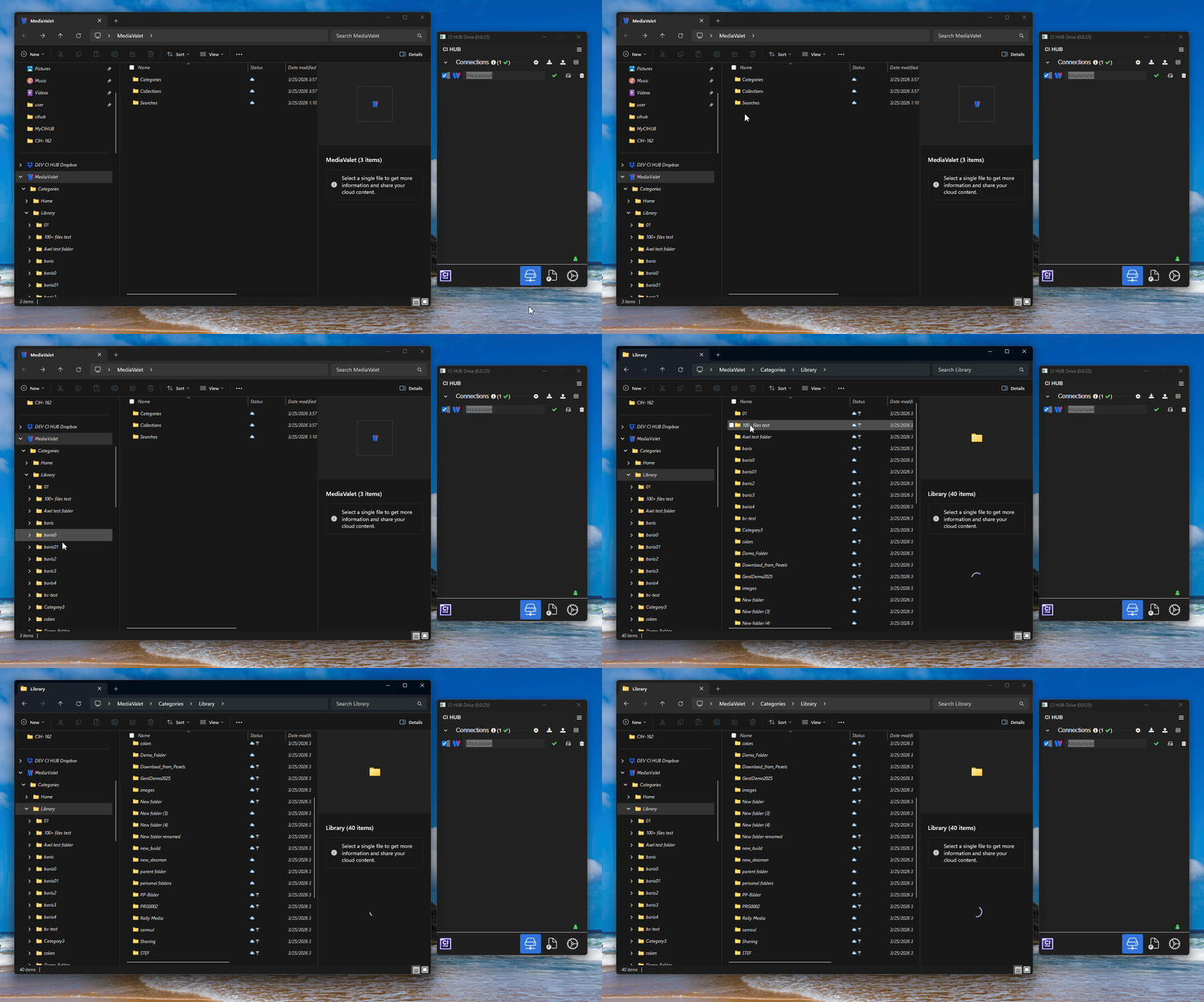
To open your connected service:
- Open the CI HUB Drive Panel.
- Click on the hard drive icon next to your connection.
- A File Explorer window will open automatically.
You will now see the complete folder structure of your connected service provider displayed inside Windows File Explorer.
You can work within this structure just as you would with folders and files on your local machine.
Work with Assets Like Local Files
All folders and assets from your connected system are visible directly in File Explorer.
You can:
- Navigate through folders
- Open files
- Right-click for additional options
- Download assets for offline use
- Search within the structure
Understanding File Status Icons
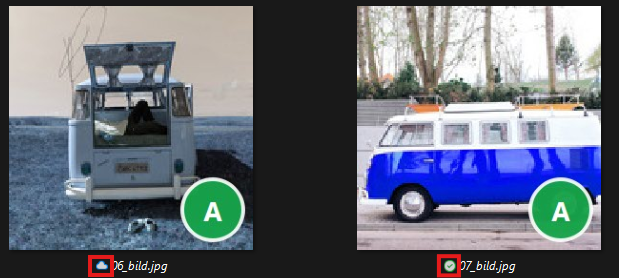
CI HUB Drive uses visual indicators to show asset availability:
- Blue Cloud Icon: The asset is available in your DAM but not yet downloaded to your local machine.
- Green Check Icon: The asset is available locally on your computer (offline access enabled).
Right-Click Options in File Explorer
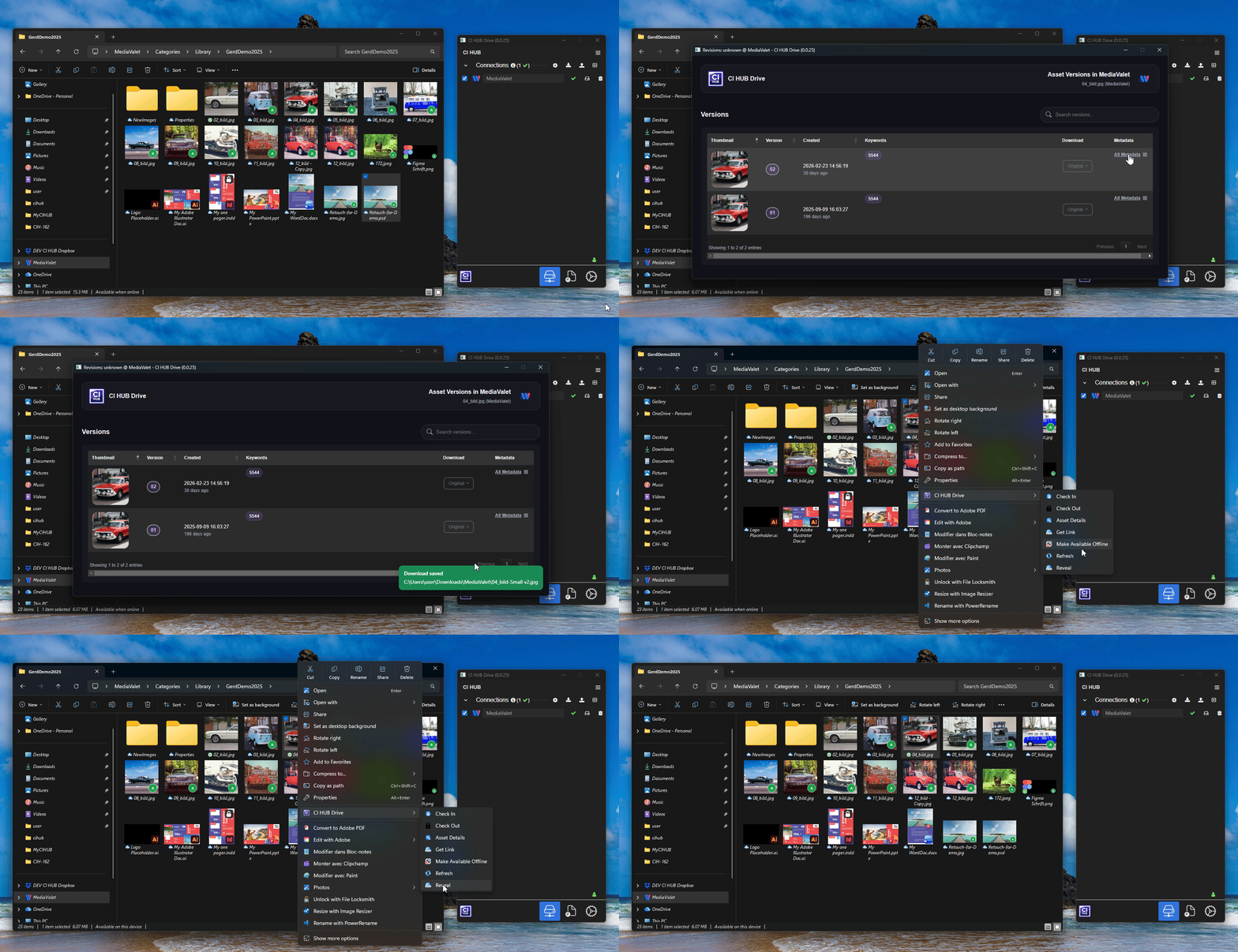
When you right-click on a folder or asset, a contextual menu appears with additional actions to help you manage and interact with your content more efficiently.
Asset Actions
-
Asset Details
Opens a new window displaying detailed information about the asset, including its thumbnail, available versions (if any), metadata, file size, and more.
From the Asset Details window, you can also download the asset by selecting the desired rendition, and the asset will be saved to your local Downloads folder.
-
Get Link
Copies the direct asset link to your clipboard, making it easy to share or reuse.
Folder & Asset Options
-
Make Available Offline
Downloads the selected asset to your local machine so it can be accessed without an internet connection.
-
Refresh
Updates the currently opened folder to reflect the latest changes from your DAM system.
-
Reveal
Opens the selected asset directly in your DAM system.
Note: Available options may vary depending on the connected provider.
Load Folder in File Explorer
To quickly navigate large or complex folder structures:
- Right-click on a folder.
- Select Load Folder.
This action:
- Loads all subfolders in the background.
- Makes them searchable via Windows Search.
Note: Assets themselves are not loaded automatically; only the folder structure is prepared.
Filter Files Within a Folder
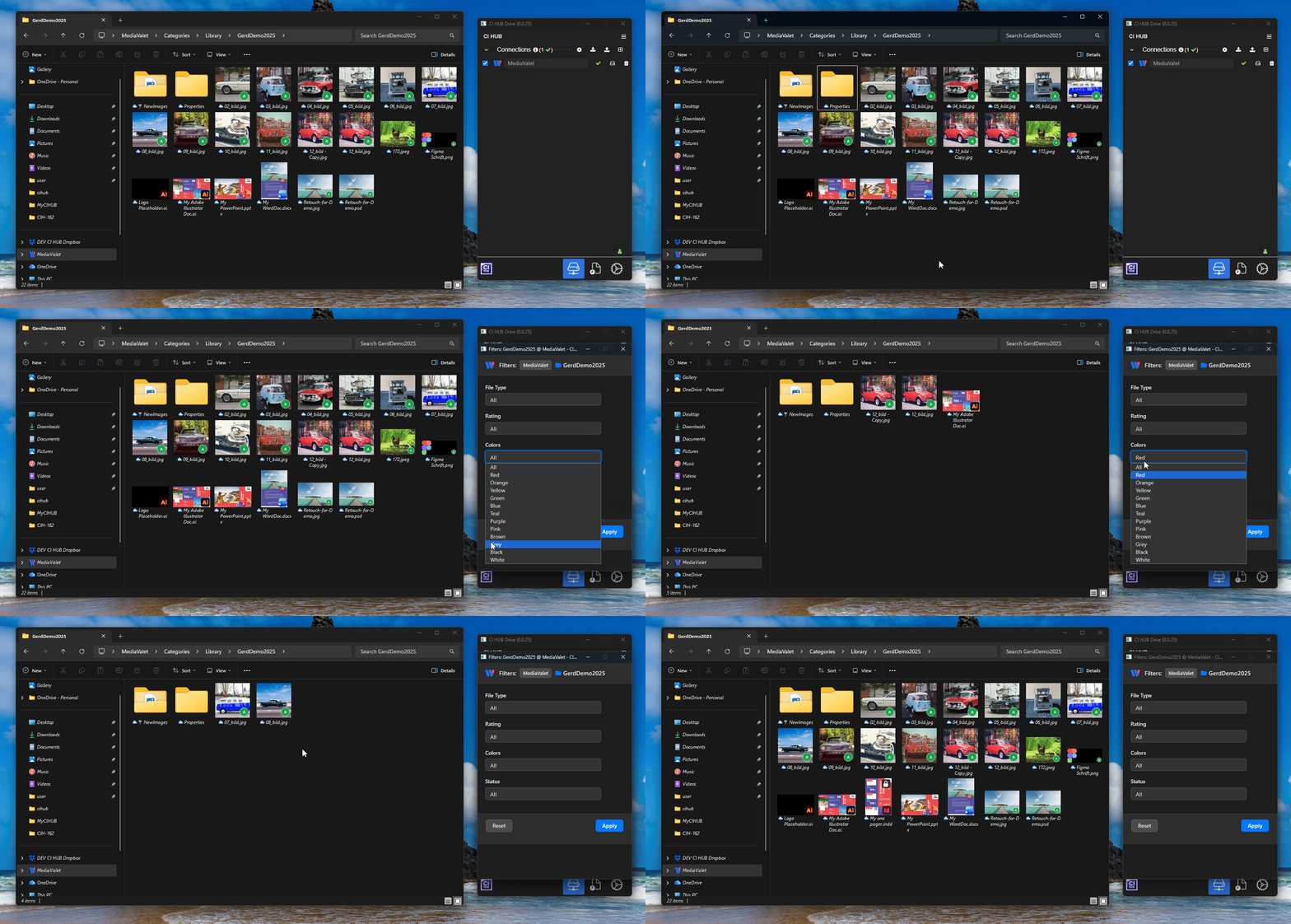
You can easily refine the contents of a folder using filtering options:
- Open a folder in File Explorer.
- Right-click inside the folder.
- Select Filter.
This allows you to filter files by:
- File type
- Rating
- Color
- Status
After selecting your desired criteria, click Apply to display the filtered results within the folder.
Other Folder Options
-
Make Available Offline
Downloads the selected folder or its contents to your local machine for offline access.
-
Refresh
Updates the folder to reflect the latest changes from your DAM system.
-
Reveal
Opens the selected folder directly in your DAM system.
Search Directly in File Explorer
How It Works
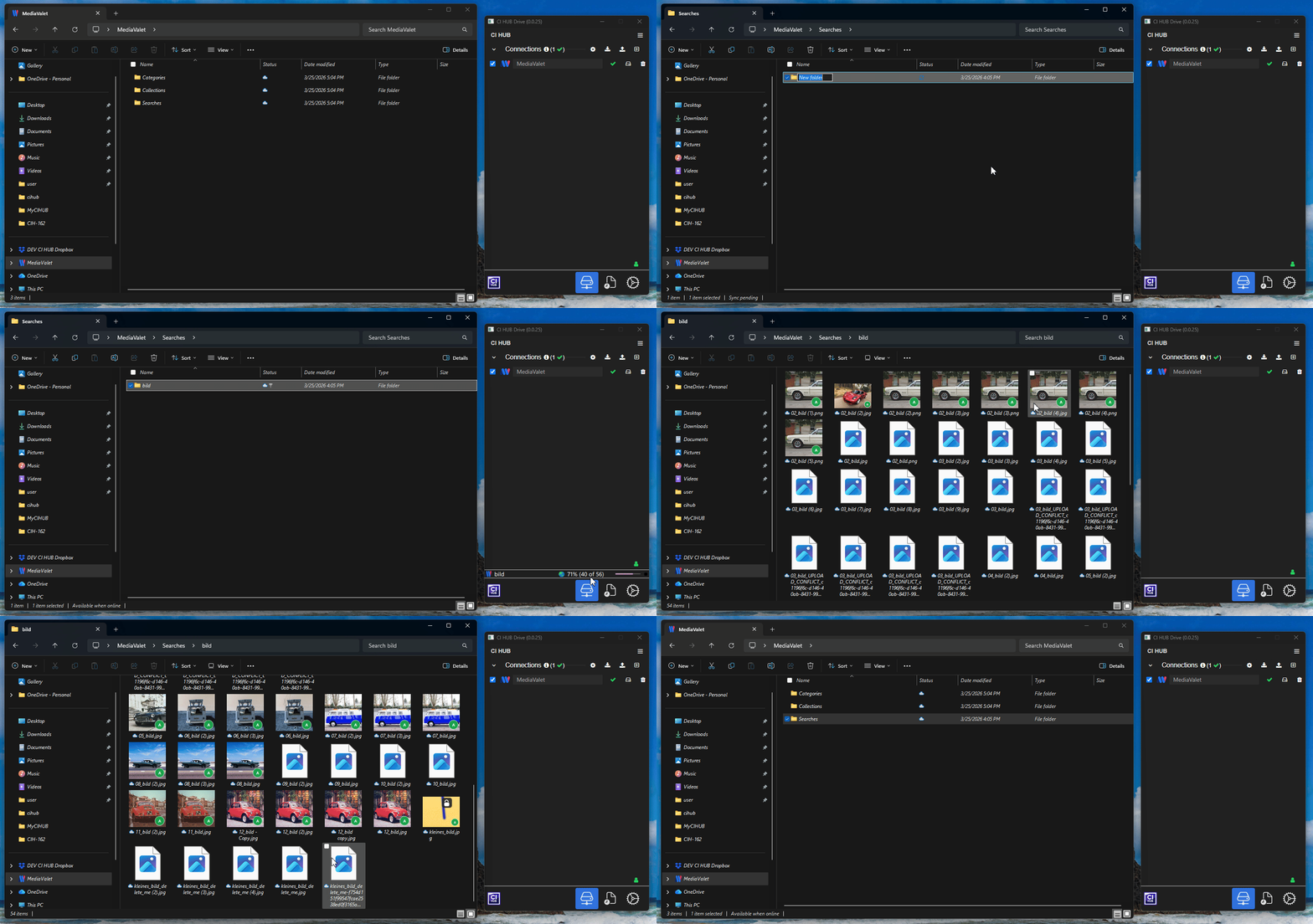
Inside your connection, you will find a folder named “Search”.
- This is a virtual folder created based on logical rules.
- It does not physically exist in your DAM.
To Search for Assets:
- Open the Search folder.
- Create a new folder inside it.
- Name the folder according to your search term.
CI HUB Drive will automatically search your DAM for that name.
Matching assets will appear inside the newly created folder.
This allows you to search directly within File Explorer without switching to your DAM interface.
Allow Delete on DAM
The “Allow Delete on DAM” setting controls whether deleting a file locally will also delete it in your remote DAM system.
By default, this setting is disabled. This means that if you delete a file locally from your File Explorer, the asset will not be deleted from your DAM system. The local deletion will only affect your machine and will not be propagated to the remote system.
If this setting is enabled, however, a local delete action will be synchronized with your DAM. In this case, deleting a file in File Explorer will also delete the asset in the remote system, resulting in its permanent removal from your DAM.
