
The CI HUB Drive for Windows gives you direct access to your connected systems and keeps your assets synchronized with your local environment.
1. Drive Tab
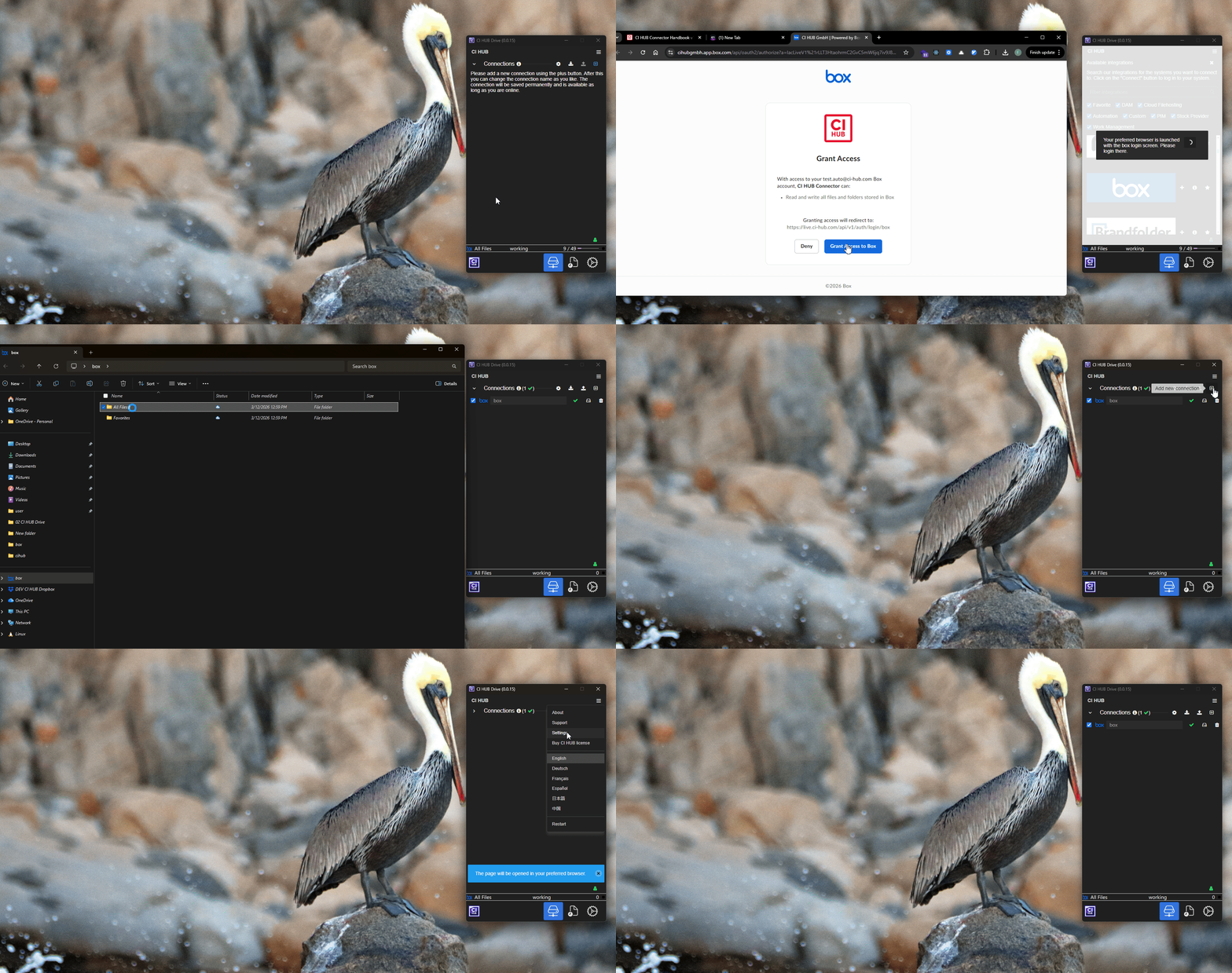
The Drive tab is your main access point to all connected systems.
Here you can:
- View all existing connections
- Access saved connections
- Create new connections
- Remove existing connections
Each connection is displayed in the list.
Launching a Connection
Next to each connection, you’ll see a Hard Drive icon.
Clicking this icon will launch the selected connection directly in your Windows File Explorer, allowing you to browse and work with your assets like local files.
Additional Options (Hamburger Menu)
Using the hamburger menu, you can access additional options such as:
- Support
- CI HUB Connector settings
- Connector language selection
- Restarting the Connector
⚠️ Important: Restarting from this menu only resets the CI HUB Connector, not the entire CI HUB Drive application.
2. Activity Tab
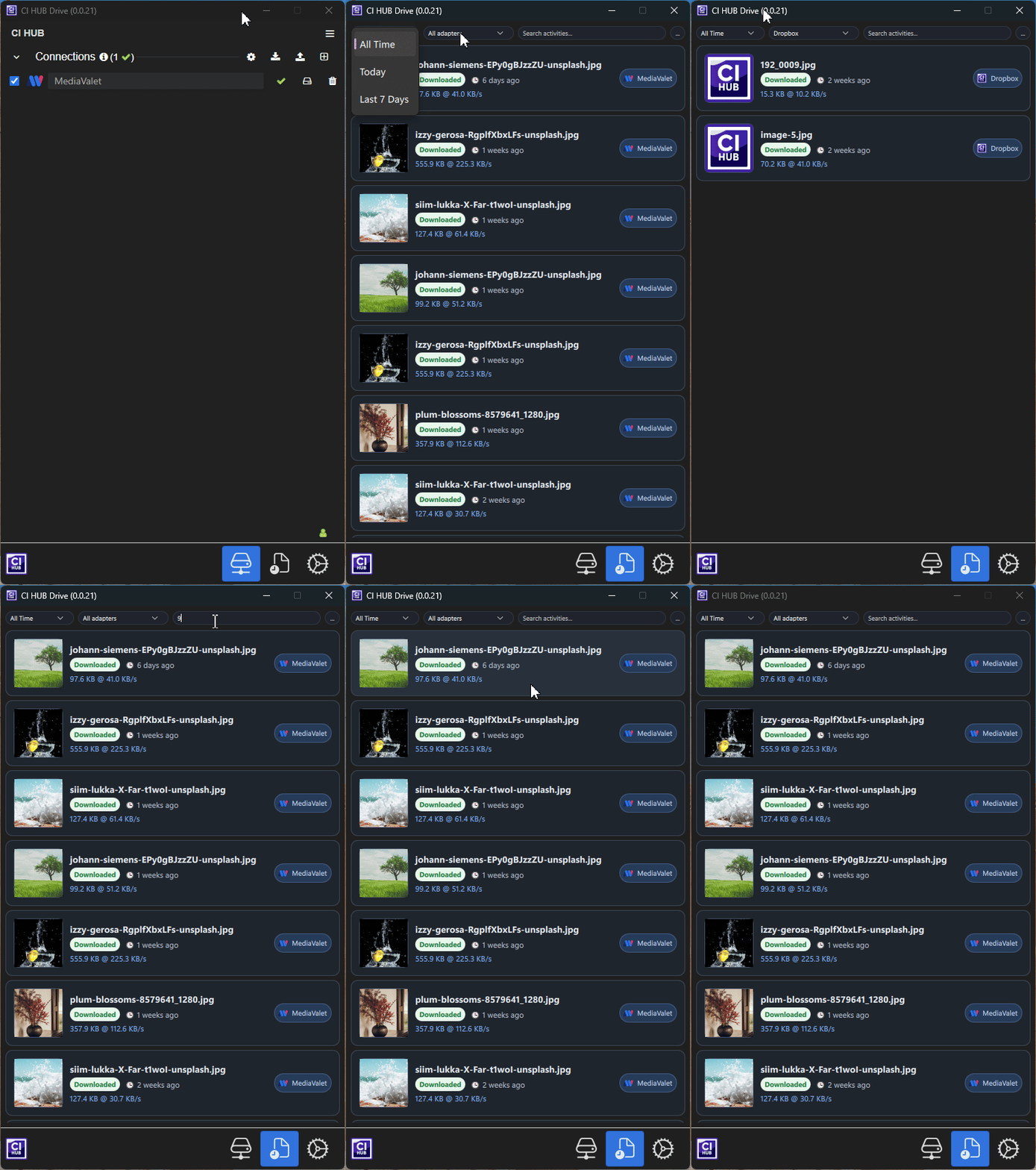
The Activity tab provides full transparency over what is happening across your connected systems.
In the activity bar, you can refine what you see using built-in filters. You can filter assets by time, by adapter, or simply use the search bar to quickly find any asset you are looking for.
Each listed asset includes helpful contextual information. Next to every asset, you can see the DAM system it originates from. Below the asset, additional details are displayed, including the date when the asset was downloaded or modified, as well as the asset size shown in the format “Asset size @ Transfer rate”
It tracks actions such as:
- Files being copied
- Files being moved
- Files being modified
- Other asset-related activities
This allows you to monitor asset usage and understand how files are being handled across your linked systems.
Opening Assets from Activity
The Activity tab offers quick access to your files:
Right-clicking on an asset provides you with several options, including opening the asset, revealing it locally, or revealing it in the cloud.
This makes it easy to quickly access, locate, or manage assets directly from the activity log.
3. Settings Tab
The Settings tab allows you to customize how the CI HUB Drive behaves.
General Settings
In the General section, you can:
- Choose whether a connection should also be loaded into the Windows File Explorer
- Allow or restrict CI HUB Drive from deleting assets in your DAM
- Display the Daemon log file
Additional Options
Within the Settings section, you can also:
- Click Quit to close the CI HUB Drive
- Click Statistics to open the Activity Bar Chart, providing insights into usage and activity
- Open the About tab to:
- View the General Terms and Conditions
- Check your current Drive version
- Search for and install the latest Drive updates
Keeping your Drive updated ensures you benefit from the latest features and improvements.
.png?width=297&height=503&name=image%20(13).png)
.png?width=297&height=506&name=image%20(14).png)
.png?width=297&height=503&name=image%20(15).png)
